 Dodaios
 Between October 3 and 12 we took 367 appshots while building Dodaios. 344 of them were an area we dragged with the mouse. The shortcut we built first, the one that captures the whole window in front, fired 10 times.
An appshot is a screenshot taken for your assistant. You press a shortcut, the picture and the text on it are captured once, and they go into the conversation as context. Your next sentence is the question. Dodaios is the desktop app we used to call Personal Jarvis: a voice assistant and a workspace for coding agents, running on your own computer.
This post covers the three ways to take an appshot, why we ended up dragging areas, how to point at something before you send it, where the picture goes, and three things that broke. “We” means the people building Dodaios and the coding agents that do much of the typing. The grey chips like service.py link to the source on GitHub.
Three ways to take one
All three are on by default. You change the shortcuts under Settings → Appshots.
| How | What is captured |
|---|---|
Press both Alt keys at once (both Option keys on a Mac) |
The window in front. |
Press both Shift keys at once |
Every screen dims. You drag a rectangle, mark it up if you want, and press Enter. Esc cancels and sends nothing. |
| Say or type “take an appshot” | The window in front. The whole monitor only when you ask for your full screen in so many words. |
The same page has a Try it row with two buttons. Take appshot in 3 s waits three seconds so you can switch to the window you mean, and Select area opens the area picker right away.
A two-key shortcut on Shift sounds like something you would trigger all day by typing. It does not fire, because the second Shift has to follow the first within half a second, and nobody types a capital letter that way. The rule lives in gesture.py as TOGETHER_S = 0.5. To pick other keys, click Change next to a shortcut and press the new combination.
We built the window shortcut and use the area one
The window appshot landed first, on September 29. The area picker followed three days later. We expected it to be the extra.
344 of 367 appshots were an area we dragged
Appshots per day in the gallery of the machine Dodaios is built on, October 3 to 12, 2026.
Swipe sideways to see the whole chart.
Show the data
| Day | Dragged area | Whole window |
|---|---|---|
| 2026-10-03 | 43 | 9 |
| 2026-10-04 | 5 | 1 |
| 2026-10-05 | 124 | 1 |
| 2026-10-06 | 73 | 3 |
| 2026-10-07 | 43 | 5 |
| 2026-10-08 | 41 | 3 |
| 2026-10-09 | 8 | 0 |
| 2026-10-10 | 4 | 1 |
| 2026-10-11 | 1 | 0 |
| 2026-10-12 | 2 | 0 |
94% of the appshots we kept were areas. Of the 23 whole-window ones, 10 came from the shortcut, 10 were taken by the assistant after we asked for one in a conversation, and 3 came from the button.
Our reading of this: a window is rarely the thing you mean. You mean the error at the bottom of a terminal, one chart on a page, the button that sits two pixels too low. A whole window makes the model find that spot first, and it can pick the wrong one. In 223 of the 367 appshots, Dodaios itself was the app in front. That fits how we work: an agent changes a view, and we show it the part that still looks wrong.
If you show a model your screen, crop before you send. A small picture of the right thing gets a better answer than a large picture that contains it somewhere.
Point at it before you send it
Letting go of the drag does not take the appshot yet. The area stays on screen with a toolbar under it, and everything you draw there is part of what the assistant sees.
One area, five markings, and a legend hidden on purpose
A box, an arrow, a text, two numbered steps, and a pixelated strip.
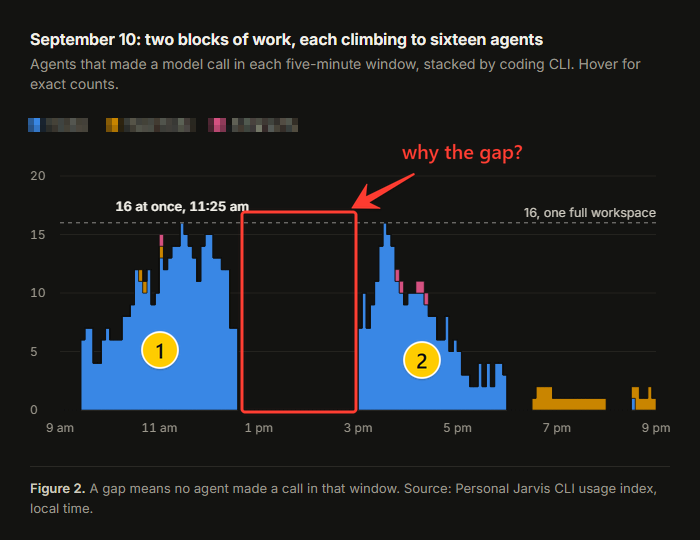
render_overlay draws the markings and apply_to_image burns them in. Source: a chart from an earlier post on this blog, marked with the area picker's own drawing code, October 12, 2026. Click the image for full size.The tools have one-letter keys. These are the ones we reach for:
| Key | Tool | Use it for |
|---|---|---|
A |
Arrow | “This one.” It is the tool that is selected when the toolbar opens. |
R |
Rectangle | Framing a region. Hold Shift for a square. |
T |
Text | A few words next to the spot. |
C |
Numbered step | Each click places the next number, for “first this, then that”. |
P |
Pixelate or blur | Hiding a name, a key or a customer’s data. |
H |
Spotlight | Dimming everything outside a box. |
Enter takes the appshot with the markings. Ctrl + Z undoes the last one. The chart in figure 2 comes from our post about running many coding agents at once.
The order in which the picture is built matters. The capture first goes through the privacy filter, which we come to below. Only then are the markings added, in markup.py: pixelate and blur on the capture’s own pixels, then the drawn markings on top. So a marking can never bring back something the filter removed. And a pixelated strip is gone from the picture itself, not covered by a layer that could be lifted off.
The assistant also gets one sentence with a marked appshot: the markings are yours, arrows and numbers point at what they mean, and blurred or pixelated parts were hidden on purpose. The note is there so a model does not take a red arrow for part of the app.
If you would rather mark up afterwards, click the small card that lands in the corner of your screen after every appshot. It opens an editor in a window of its own, with the same tools plus cropping. We did that for 14 of the 367 appshots, so most of the time the picker’s own toolbar was enough.
Where an appshot goes
An appshot from a shortcut needs a destination, because you might be in a voice call, typing in the chat, or neither. Appshot destination on the same page has three settings:
| Setting | During a voice call | Without a voice call |
|---|---|---|
| Automatic (default) | Into the call | Onto your next message |
| Next message | Onto your next message | Onto your next message |
| Voice call only | Into the call | Not sent |
Into the call is silent. The assistant does not announce the picture; your next words are the question. Onto your next message means the next thing you say or type carries it. While the chat is open it shows up in the message box as an attachment you can remove.
A waiting appshot is used once and expires after two minutes. Scheduled tasks and background agents never pick it up. That last rule is deliberate: a picture of your screen should go to the conversation you are in, not to whatever job happens to run next.
Every shortcut appshot also lands on your clipboard as a finished picture with its markings, so you can paste it into a mail, a document or another chat. We use that to hand the same picture to a coding agent in a terminal and to a person in a chat.
Three things that broke
The appshot showed the mascot
During a voice call we said “take an appshot”, and the assistant got a small square picture of the app’s own floating mascot. The log said appshot: active window 288x288 via tool -> turn, right after a normal 1280x696 one.
An appshot captures the window in front. But a click on the mascot or on the small control bar, to mute or to hang up, gives that little overlay the focus. For Windows, the mascot was the window in front. Since October 2 the capture looks past the app’s own overlays to the app window underneath.
“The window in front” has to mean what the person means, not what the operating system reports. If your tool draws its own floating controls, they will be in the way of your own screenshots.
The frame had moved on
The area picker freezes every screen under a light dim, so nothing moves while you drag. Our first version froze only what you saw. The real capture happened after you finished selecting, from the live screen.
With a video playing, the picture was whatever frame was showing several seconds later. You picked one moment and the assistant got another. Since October 6, every monitor is grabbed at the moment you press the shortcut, and the area you select is cut out of that frame.
If you freeze the screen for a selection, capture from the frozen frame. Two sources of truth for one picture will disagree as soon as something moves.
The shortcut started a program every time
Each press of the area shortcut used to start a fresh Python process, load the windowing library and only then dim the screens. On Windows we measured about 399 ms from starting that process to its ready signal, long enough for the busy cursor to show up.
The picker now stays prepared in the background while appshots are switched on, in picker_host.py. The same measurement gives 94 to 133 ms per selection. While it waits it holds no screenshot and no window, and switching appshots off ends it. This change is in Dodaios 3.0.0.
Those numbers are from one Windows machine with Python 3.11. They cover the picker, not the privacy checks and the capture that follow. On macOS and Linux the same code path runs, but we have not measured it there.
What an appshot never does
Appshots capture through Screen Context, the part of Dodaios that every look at your screen goes through. It has one switch, Allow appshots, and with it off nothing is captured by any of the three ways.
- Apps on your denylist are refused. For an area, a denylisted window that overlaps your rectangle refuses the capture. One elsewhere on the screen does not.
- Password fields and sensitive patterns are redacted before the picture goes anywhere.
- The raw frame is never written to disk. The capture happens in memory.
- The gallery is the one deliberate copy. It keeps the finished, filtered appshots on your computer, the newest 500, and you can switch it off or delete everything in it. Nothing is uploaded; there is no sharing link and no cloud folder.
There is no border around the window before the shutter. A short flash over the captured window, and the card flying into the corner, are the visible signs that a capture happened.
Where it runs
- Windows: all three ways work. This is where we use it every day and where the numbers in this post come from.
- macOS: the both-
Optionshortcut needs the Input Monitoring permission, and the capture needs Screen Recording. macOS asks for Screen Recording at your first appshot, not at launch. - Linux with X11: shortcuts, area picker and capture are supported. We did not re-test macOS or X11 for this post.
- Linux with Wayland, and servers without a screen: the shortcuts and the area picker are not available, and the Appshots page says why.
The full reference, with every key and setting, is docs/appshots.md in the repo.
What to take from this
- Start with the area shortcut: press both
Shiftkeys, drag over the thing you mean, pressEnter, then ask your question. - Mark before you send:
Afor an arrow,Cfor numbered steps,Pto hide what the assistant should not read. - Leave the destination on Automatic under Settings → Appshots → Appshot destination, unless you want appshots to stay out of your typed messages.
- Use the clipboard copy: after any shortcut appshot, paste the same picture wherever else you need it.
- Put the apps you never want captured on the denylist before you need it, not after.
Dodaios is open source at github.com/Dodaios/Dodaios, and you can get the app at dodaios.ai. If an appshot captures the wrong window for you, tell us in an issue and name the app that was in front. For the other way to get words into any app without typing, see how dictation works.
How we measured. Figure 1 and every count in this post come from the meta.json files of the appshot gallery on the machine Dodaios is built on, read on October 12, 2026, in local days. Each file records when an appshot was taken, how it was triggered, and whether it was a selected area. We exported counts only: no pictures, window titles or on-screen text were read. The gallery keeps appshots taken with a shortcut, a button or on request in a conversation; appshots that were deleted since, or taken while the gallery was switched off, are not in the numbers. “Dodaios itself was the app in front” counts the appshots whose recorded app was the desktop app or its development copy. The 14 edits are appshots with a saved version from the editor; markings made in the area picker before the shot are not recorded separately. The picker timings are the measurements written down in docs/appshots.md. Figure 2 is a real chart from this blog with markings placed by a script through the app’s own drawing and burning code; it was not taken with the shortcut.